




In today’s digital-first world, businesses are flooded with communication channels, yet SMS remains one of the most direct and impactful ways to reach customers. Why? Text messages boast an average open rate of over 98%, making them an unbeatable tool for real-time engagement. Whether it’s sending order updates, payment reminders, or promotional offers, SMS ensures your message gets noticed immediately.
For Salesforce users, integrating SMS within the CRM brings convenience and control under one roof. Instead of juggling multiple tools, you can send, track, and automate messages directly from Salesforce, saving time and enhancing productivity.
That’s where SMS Ninja by Ksolves steps in. This Salesforce-native SMS App empowers businesses to communicate instantly with their audience without leaving Salesforce. It’s fast, reliable, and incredibly affordable. If you’ve ever wondered how to send SMS from Salesforce to mobile numbers effortlessly, SMS Ninja is your answer.
Why Salesforce Users Need SMS Integration
Salesforce is built to manage relationships, and SMS adds the human touch that makes those relationships stronger. Integrating a Salesforce SMS App bridges the gap between automation and personalization. It allows teams to stay connected with customers through instant messaging, all while keeping a complete communication history inside Salesforce.
Here’s why Salesforce SMS integration is essential for modern businesses:
- Real-Time Customer Engagement: Send alerts, OTPs, order updates, or appointment confirmations in seconds.
- Faster Lead Conversions: Instantly follow up on new leads before they lose interest, improving response time and conversion rates.
- Better Lead Nurturing: Build long-term relationships with automated SMS drip campaigns, keeping prospects engaged.
- Centralized Communication Tracking: Every SMS is automatically logged in Salesforce, no more switching tabs or losing data.
- Enhanced Team Productivity: Your sales and support teams can view, respond to, and track all messages without leaving their dashboards.
In short, automating SMS in Salesforce turns your CRM into a complete communication hub that strengthens customer trust and drives measurable business outcomes.
How SMS Ninja Makes It Effortless
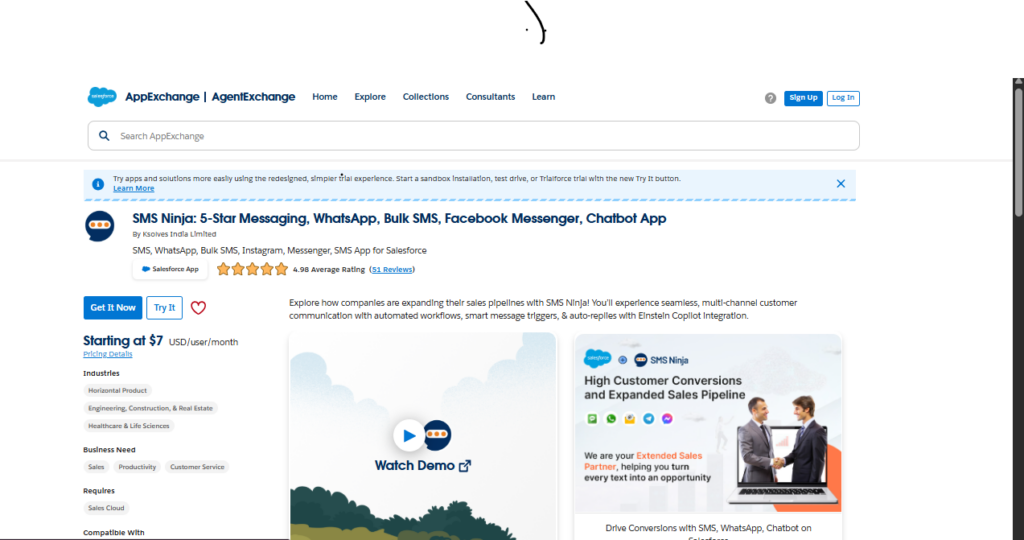
SMS Ninja by Ksolves redefines how Salesforce users handle communication. It’s not just another SMS tool; it’s a comprehensive Salesforce SMS automation app designed for simplicity, scalability, and affordability. Whether you need to send one-to-one updates or launch a full-scale marketing campaign, SMS Ninja makes it possible in just a few clicks.
Here’s what makes SMS Ninja the preferred SMS App for Salesforce:
- Send SMS Directly from Salesforce Records: Message any Lead, Contact, or Campaign directly from your Salesforce interface, no external software needed.
- Pre-Built and Customizable Templates: Use ready-to-send templates or create your own personalized messages for faster execution and brand consistency.
- Real-Time Delivery Tracking: Monitor delivery status, message success rates, and response patterns right within Salesforce.
- Free Inbound Messages: Let customers reply at no additional cost, ensuring two-way conversations that feel natural and responsive.
- Automated Campaigns and Drip Messaging: Set triggers for follow-ups, reminders, or announcements to ensure consistent communication, even while you focus on other tasks.
With SMS Ninja, automation meets personalization, helping businesses automate SMS in Salesforce while maintaining the human connection customers expect.
Peerless Features of SMS Ninja for Better Communication
- Active Chat Management
Gain a dedicated view for all active customer conversations within the 24-hour response window. This ensures your team can manage ongoing discussions effectively and respond before opportunities are lost.
Tangible Benefits:
- Improved response time and proactive engagement.
- Real-time visibility into live customer chats.
- Zero missed opportunities during critical interaction periods.
- Enhanced Workflow Automation
Seamlessly integrate SMS actions into Salesforce Flows and Triggers, allowing your business to automate messaging workflows based on real operational events.
Tangible Benefits:
- Boosts operational efficiency by automating repetitive tasks.
- Ensures personalized, timely communication with minimal effort.
- Works effortlessly with your existing Salesforce processes.
- Inbuilt Round Robin Assignment
Automatically distribute new chats and leads across team members in a balanced, round-robin manner, ensuring fairness and faster response times.
Tangible Benefits:
- Equitable workload distribution.
- Faster initial responses to new inquiries.
- Reduces manual management and oversight.
- Record Navigation from Chat Window
Save time and improve context switching with a single-click navigation button that takes agents directly from a chat to its corresponding Salesforce record.
Tangible Benefits:
- Streamlined agent workflows.
- Instant access to customer history.
- Reduced handling time per conversation.
- Expanded Email Template Functionality
Access and utilize both Salesforce Classic and Lightning email templates directly within SMS Ninja, ensuring brand consistency across all communication channels.
Tangible Benefits:
- Maintains consistent branding across email and SMS.
- Reduces effort by reusing existing templates.
- Provides greater flexibility for multi-channel communication.
- Away-from-System Notifications and Reply
Stay connected, even when you’re away from your desk. Receive an email notification for every new chat and reply directly from your inbox to send a response through the same channel.
Tangible Benefits:
- No missed messages even when offline.
- Faster, flexible responses from anywhere.
- Better accountability across teams.
- Unified Inbox
Manage all communication channels, including SMS and WhatsApp, from one centralized inbox. View, reply, and organize conversations seamlessly without switching tabs.
Tangible Benefits:
- Streamlined communication management.
- Complete conversation history for every contact.
- Faster, more efficient handling of multi-channel interactions.
- Enhanced Message Management
The new conversation management suite makes organizing, filtering, and searching messages effortless.
Tangible Benefits:
- Track, reply, and organize customer conversations easily.
- Use Advanced Filters to locate messages quickly.
- Real-Time Notifications keep your team instantly informed of new messages.
How to Set Up SMS Ninja – The Best Salesforce SMS App
- Assign User Licenses
To utilize the SMS Ninja App, you must first assign licenses to users in your organization after a successful installation.
- Navigate to Setup > Installed Apps.
- Locate SMS Ninja in the list view and click on Licenses.
- Click the Add button and select the users you wish to assign licenses to.
- Assigned users will now have access to the SMS Ninja app.
- Assign Permission Sets
Different permission sets are available in SMS Ninja, allowing users to interact based on their roles.
- For users sending messages, running campaigns, or acting as sales representatives, assign the SN_User permission set.
- For users in higher hierarchy roles responsible for setting messaging providers, creating campaigns, templates, or for admin functions, assign the SN_Admin permission set.

- Steps to Assign Permission Set
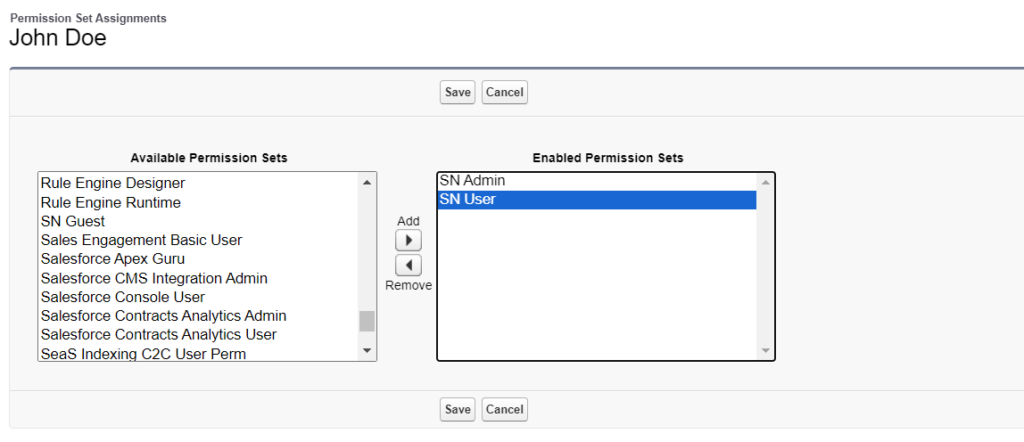
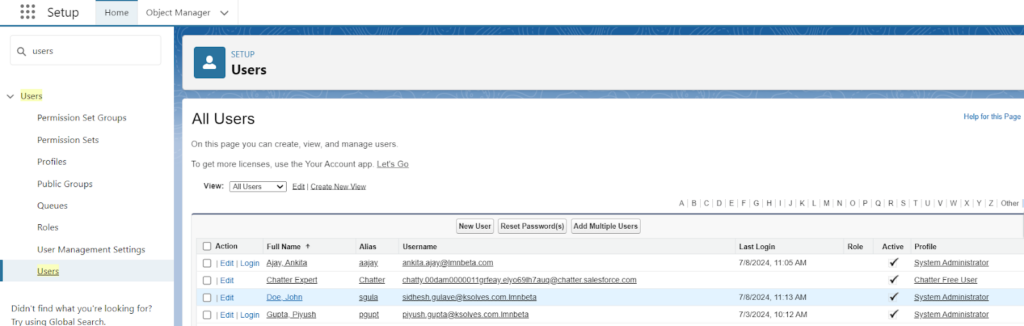
- Go to Setup > Users and select the respective user.
- In the next window, hover over the Permission Set Assignment section and click Edit Assignments.
- Select the permission set (SN_User or SN_Admin), click Add, and then click Save.
Note: For using the Campaign Bulk feature, the user should have the Marketing user checkbox checked in the user settings, Setup > Users > Marketing User checkbox
- Create Site
- Go to Setup > Sites.

- If a Site already exists, skip to the next section; otherwise, click New to create a new Site.
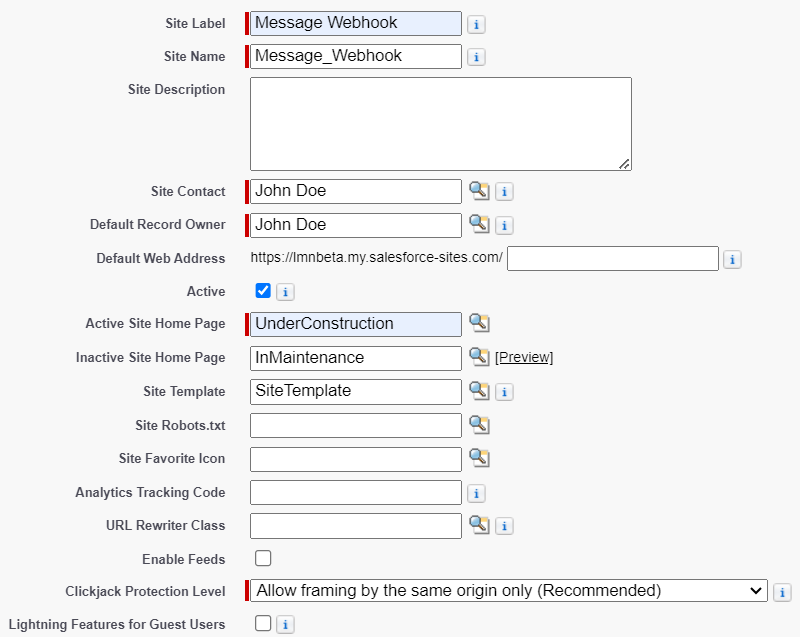
- Enter a Site Label and Site Name (this will be the site’s API name).
- Check the box next to the Active field.
- For the Active Site Home Page, set it to an “Under construction” page.
- Keep other fields unchanged and click Save.
- Public Access Settings
- Open the created site and click the Public Access Settings button.
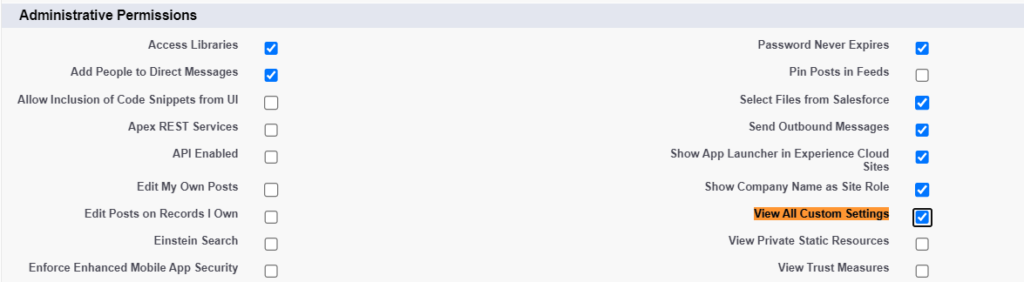
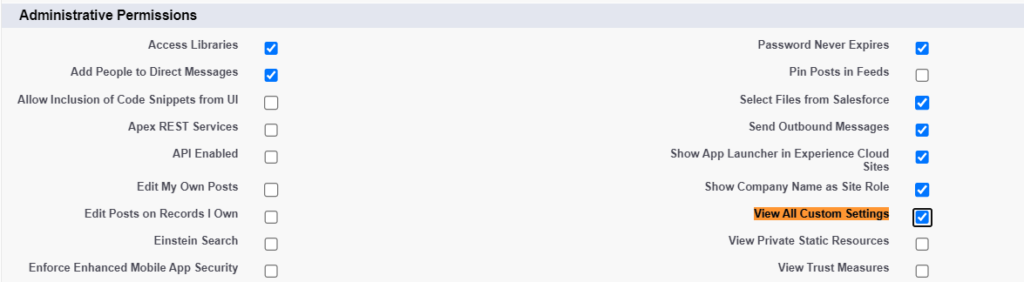
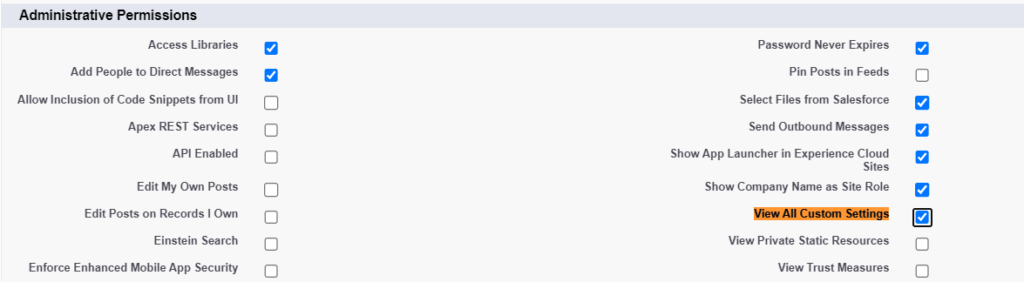
- In the Administrative Permissions section, click Edit and check the View All Custom Settings checkbox.
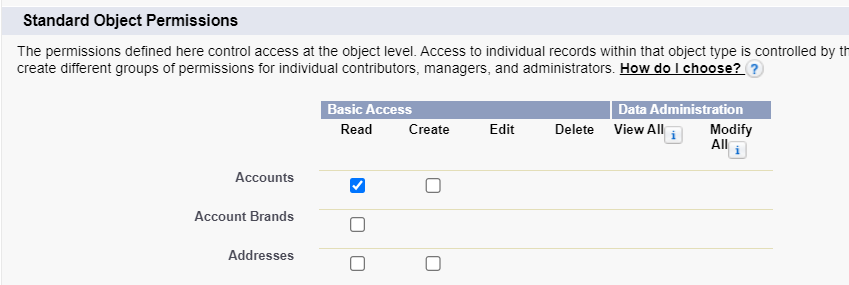
- In the Standard Object Permissions section, check Read access for the objects you want guest users to access (e.g., check the Lead object checkbox).
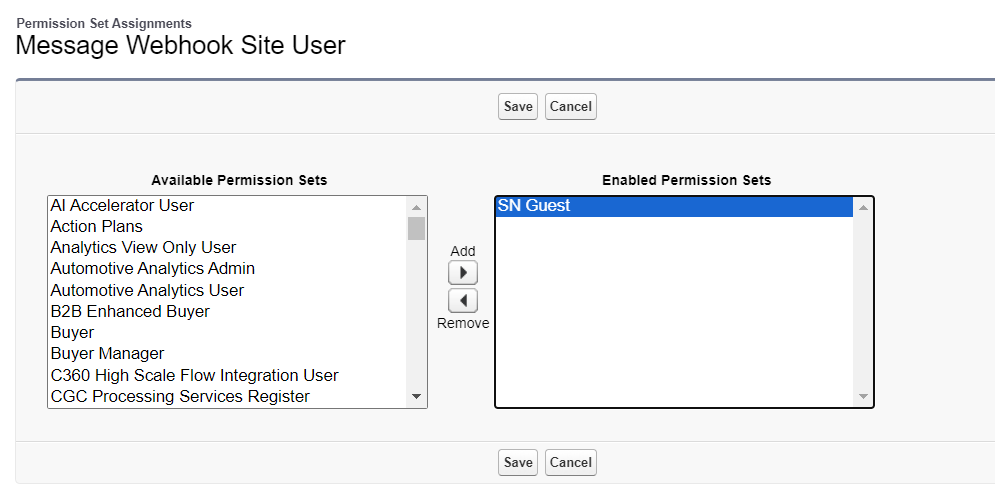
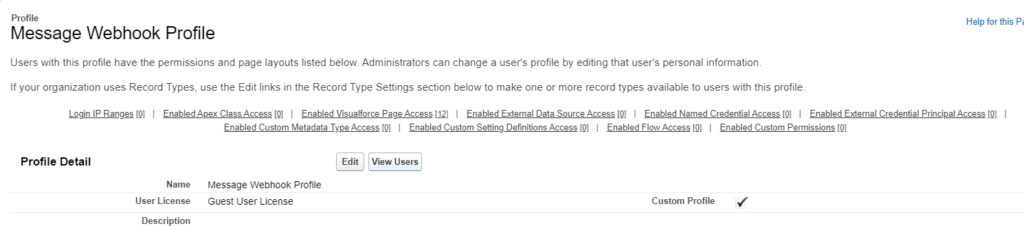
- Scroll to the top of the page and click View Users.
- Click on the name of the site user in the list, hover over the Permission Set Assignment section, click Edit Assignments, select the SN_Guest permission set, click Add, and then click Save.
- Enable Search
To search and identify customer records in a custom object, enable search on the object. Steps to enable search:
- Go to Setup > Object Manager and select the desired object.
- In the Details tab, click the Edit button.
- At the bottom of the page, check the Allow Search checkbox.
With the initial setup complete, you can now proceed to configure settings within the SMS Ninja App, including setting messaging providers and phone numbers.
To get complete details about the setup process, check out our user manual.
Final Words
If you’ve been wondering how to send SMS from Salesforce to mobile numbers in the most efficient, compliant, and cost-effective way, SMS Ninja is the answer. It’s not just an app; it’s your all-in-one communication hub designed to help you automate SMS in Salesforce, nurture leads faster, and build stronger customer relationships.
Start reaching your customers instantly with SMS Ninja, the smartest way to send SMS from Salesforce.
Explore on AppExchange: Click here